> ## Documentation Index
> Fetch the complete documentation index at: https://docs.li.fi/llms.txt
> Use this file to discover all available pages before exploring further.
# Configure Widget
> Flexibility at your fingertips
The LI.FI Widget supports a range of configuration options, allowing you to:
* Allow or deny specific chains, tokens, bridges, and exchanges.
* Filter chains by ecosystem type (EVM, SVM, UTXO, MVM, TVM).
* Preselect default source and destination chains.
* Choose default tokens for both source and destination.
* Set the amount of the source or destination token.
* Specify a destination address.
* Configure integrator fees with static or dynamic fee calculation.
* Enable gasless/relayer routes for eligible transactions.
* Configure blockchain providers for Ethereum, Solana, Bitcoin, Sui, and Tron ecosystems.
* Customize various LI.FI SDK settings through the `sdkConfig` configuration.
These options enable precise control over the widget's behavior and improve the user experience by adjusting it to specific needs and preferences.
## LI.FI SDK configuration
The LI.FI Widget is built on top of the LI.FI SDK, leveraging its robust functionality for cross-chain swaps and bridging. The sdkConfig option allows you to configure various aspects of the SDK directly within the widget.
Let's look at the example of configuring private RPC endpoints using the sdkConfig option.
```typescript theme={"system"}
import { LiFiWidget, WidgetConfig, ChainId } from "@lifi/widget";
const widgetConfig: WidgetConfig = {
sdkConfig: {
rpcUrls: {
[ChainId.ARB]: ["https://arbitrum-example.node.com/"],
[ChainId.SOL]: ["https://solana-example.node.com/"],
},
},
};
export const WidgetPage = () => {
return (
);
};
```
In a production app, it is recommended to pass through your authenticated RPC provider URL (Alchemy, Infura, Ankr, etc).
If no RPC URLs are provided, LI.FI Widget will default to public RPC providers.
Public RPC endpoints (especially Solana) can sometimes rate-limit users depending on location or during periods of heavy load, leading to issues such as incorrectly displaying balances or errors with transaction simulation.
Please see other SDK configuration options in the [Configure SDK](/sdk/configure-sdk) section.
## Blockchain providers configuration
The LI.FI Widget supports multiple blockchain ecosystems through dedicated provider packages. You can configure providers for Ethereum (EVM), Solana (SVM), Bitcoin (UTXO), Sui (MVM), and Tron (TVM) chains.
```typescript theme={"system"}
import { LiFiWidget } from "@lifi/widget";
import type { WidgetConfig } from "@lifi/widget";
import { EthereumProvider } from "@lifi/widget-provider-ethereum";
import { SolanaProvider } from "@lifi/widget-provider-solana";
import { BitcoinProvider } from "@lifi/widget-provider-bitcoin";
import { SuiProvider } from "@lifi/widget-provider-sui";
import { TronProvider } from "@lifi/widget-provider-tron";
const widgetConfig: WidgetConfig = {
providers: [
EthereumProvider(),
SolanaProvider(),
BitcoinProvider(),
SuiProvider(),
TronProvider(),
],
};
export const WidgetPage = () => {
return (
);
};
```
Each provider can be customized with specific configurations. For example, the Ethereum provider supports configuration for WalletConnect, Coinbase, MetaMask, Porto, and Base Account connectors. See the [Wallet Management](/widget/wallet-management) page for details.
## Initialize form values
The LI.FI Widget uses a number of form values that are used to fetch and execute routes.
These values are `fromAmount`, `fromChain`, `fromToken`, `toChain`, `toToken`, `toAmount`, and `toAddress`.
They are most often set by using the Widget UI but they can also be initialized and updated programmatically.
By configuring these options, you can streamline the user experience, ensuring that the widget is preloaded with the desired chains, tokens, amount and address for a swap or bridge. This reduces the need for manual input and helps guide users through the intended flow.
You can initialize these values by either:
* Widget config - by adding `fromAmount`, `fromChain`, `fromToken`, `toChain`, `toToken`, `toAmount`, or `toAddress` values to the widget config.
* URL search params - when `buildUrl` in the widget config is set to `true`, by adding them to the URL search params in the url of the page the widget is featured on.
When setting form values via config or URL search params you will see any corresponding form field UI updated to reflect those values.
## Initializing by widget config
The LI.FI Widget allows you to preconfigure default chains and tokens, making it easy to set up your desired swap or bridging parameters right from the start. Below is an example of how to configure the widget with specific default chains, tokens, amount, and send to address values.
```typescript theme={"system"}
import type { WidgetConfig } from "@lifi/widget";
import { ChainType } from "@lifi/widget";
const widgetConfig: WidgetConfig = {
// set source chain to Polygon
fromChain: 137,
// set destination chain to Optimism
toChain: 10,
// set source token to USDC (Polygon)
fromToken: "0x3c499c542cEF5E3811e1192ce70d8cC03d5c3359",
// set source token to USDC (Optimism)
toToken: "0x0b2C639c533813f4Aa9D7837CAf62653d097Ff85",
// set source token amount to 10 USDC (Polygon)
fromAmount: 10,
// set the destination wallet address
toAddress: {
address: "0x29DaCdF7cCaDf4eE67c923b4C22255A4B2494eD7",
chainType: ChainType.EVM,
},
};
export const WidgetPage = () => {
return (
);
};
```
You can also set a minimum amount in USD equivalent using the `minFromAmountUSD` parameter (number) to ensure users meet minimum transaction requirements.
## Initializing by URL search params
To initialize form values in the widget using URL search params you will need to ensure that `buildUrl` is set to `true` in the widget config.
```typescript theme={"system"}
import type { WidgetConfig } from "@lifi/widget";
const widgetConfig: WidgetConfig = {
// instruct the widget to use and build url search params
buildUrl: true,
};
```
You can then feature the URL search params in the URL when navigating to the page that features the widget.
```
https://playground.li.fi/?fromAmount=20&fromChain=42161&fromToken=0xFd086bC7CD5C481DCC9C85ebE478A1C0b69FCbb9&toAddress=0x29DaCdF7cCaDf4eE67c923b4C22255A4B2494eD7&toChain=42161&toToken=0xaf88d065e77c8cC2239327C5EDb3A432268e5831
```
Its important to understand this will only work for the widgets initialization - dynamically changing the search params in the URL without a page load will not cause an update of the form values in the widget.
Config values override URL search params
If you want to use URL search params to populate the widget's form values on initialization (or page load) its important that those form values are NOT featured in the config object used to initialize the widget. fromAmount, fromChain, fromToken, toAddress, toChain, and toToken should NOT be set on the widget config in order to allow the URL to perform the initial set up of the widgets state.
On first page load if you have form values in both the config and the URL then the URL search params will be rewritten to match the config values and the widget form will be populated with the values presented in the config.
## Update form values
After the widget has initialized there are two ways you can update the form values in the widget
* Using the widget config - this uses reactive values in the config and requires some management of those values for updates
* Using the formRef - this provides an function call that you can use to update values in the widgets form store.
Note that when `buildUrl` is set to `true` in the widget config both methods
should also update the URL search params as well as the value displayed in the
widget itself.
## Updating by widget config
Once the widget has initialized you can update the form values in the widget by updating the widget config.
To perform an update you should only include the form values in the config that you want to change and ensure these changes are passed to the Widget.
For example, if you want to change the fromChain and fromToken and nothing else you should include only include those values
In addition to the form values you want to change you should also set a formUpdateKey. This needs to be a unique, randomly generated string and is used to ensure that the form values are updated in the widget - essentially forcing an update. This can avoid some edge case issues that might arise when setting values in the widget via a mix of config and user actions via the widgets UI.
Here is an example of what your config would look like.
```typescript theme={"system"}
import type { WidgetConfig } from '@lifi/widget';
const widgetConfig: WidgetConfig = {
fromChain: 10,
fromToken: '0x94b008aA00579c1307B0EF2c499aD98a8ce58e58',
// use the date object to generate a unique value
formUpdateKey: new Date().valueOf().toString()
// config may still feature other config values but
// should not include other form values…
}
```
You can also reset the form values and their fields to an empty state using `undefined`. This example resets only the fromChain and fromToken form values.
```typescript theme={"system"}
import type { WidgetConfig } from "@lifi/widget";
const widgetConfig: WidgetConfig = {
fromChain: undefined,
fromToken: undefined,
// use the date object to generate a unique value
formUpdateKey: new Date().valueOf().toString(),
// config may still feature other config values but
// should not include other form values…
};
```
Here `undefined` used to reset a the widgets form value to an empty state. The absence of a property from the widget config object means that property will remain unchanged.
### State management with widget config
When using config to update widgets form values it is often a good choice to consider using an application state management library to store your widget config. There are many options to choose from such as Zustand, MobX, Redux or even React context.
For example, if you were to use Zustand as your state management tool you could use Zustand's API to access and set values on your config from any part of your application. In addition you would also be able to use Zustand's equality functionality, such as the built-in `shallow` function, to ensure that your widget config is only used to update the instance of the LiFi Widget when necessary. This should be beneficial for optimizing re-renders.
You can find an example that uses [Zustand to manage widget config](https://github.com/lifinance/widget/tree/main/examples/zustand-widget-config) in the widget repository.
## Updating by form ref
This method provides developers a way to set the form values directly in the widget without making changes to the widget config. By passing a ref object to the widget you can access a function to set values directly on the widgets form state. See the example below.
```typescript theme={"system"}
import type { FormState } from '@lifi/widget';
import { LiFiWidget } from '@lifi/widget';
export const WidgetPage = () => {
const widgetConfig: WidgetConfig = {
buildUrl: true,
};
const formRef = useRef(null);
const handleClick = () => {
formRef.current?.setFieldValue( 'fromChain', 10, { setUrlSearchParam: true });
};
return (
<>
)
}
```
Notice the use of `setFieldValue` function.
```typescript theme={"system"}
formRef.current?.setFieldValue( 'fromChain', 10, { setUrlSearchParam: true });
```
Once initialized the `setFieldValue` function can be called to set the form value, note that `setUrlSearchParam` will ensure the url is updated if you have `buildUrl` set to `true` in your widget config.
Here are some examples of usage.
```typescript fromChain & fromToken theme={"system"}
// fromChain and fromToken can be set independently but you might also find that you want to set them at the same time
formRef.current?.setFieldValue(
'fromChain',
10,
{ setUrlSearchParam: true }
);
formRef.current?.setFieldValue(
'fromToken',
'0x94b008aA00579c1307B0EF2c499aD98a8ce58e58',
{ setUrlSearchParam: true }
);
// To reset fromChain and fromToken
formRef.current?.setFieldValue(
'fromChain',
undefined,
{ setUrlSearchParam: true }
);
formRef.current?.setFieldValue(
'fromToken',
undefined,
{ setUrlSearchParam: true }
);
```
```typescript fromAmount theme={"system"}
formRef.current?.setFieldValue(
'fromAmount',
'10',
{ setUrlSearchParam: true }
);
// To reset fromAmount
formRef.current?.setFieldValue(
'fromAmount',
undefined,
{ setUrlSearchParam: true }
);
```
```typescript toAddress theme={"system"}
import { ChainType } from '@lifi/widget';
formRef.current?.setFieldValue(
'toAddress',
{
name: 'Lenny',
address: '0x552008c0f6870c2f77e5cC1d2eb9bdff03e30Ea9',
chainType: ChainType.EVM,
},
{ setUrlSearchParam: true }
);
// To reset toAddress
formRef.current?.setFieldValue(
'toAddress',
undefined,
{ setUrlSearchParam: true }
);
```
## Configure route options
The widget provides several options to control route fetching and selection behavior.
```typescript theme={"system"}
import type { WidgetConfig } from "@lifi/widget";
const widgetConfig: WidgetConfig = {
// Set default route priority (RECOMMENDED, FASTEST, CHEAPEST, SAFEST)
routePriority: "RECOMMENDED",
// Set default slippage (0.03 = 3%)
slippage: 0.03,
// Show only the recommended route and hide the route selector
showSingleRoute: true,
// Enable gasless/relayer routes for eligible transactions
useRelayerRoutes: true,
};
export const WidgetPage = () => {
return (
);
};
```
## Configure integrator fees
You can configure fees that will be collected on each transaction. There are two approaches:
### Static fee
Set a fixed fee percentage for all transactions using `feeConfig`:
```typescript theme={"system"}
import type { WidgetConfig } from "@lifi/widget";
const widgetConfig: WidgetConfig = {
feeConfig: {
fee: 0.01, // 1% fee
name: "DApp fee",
showFeePercentage: true,
showFeeTooltip: true,
},
};
```
### Dynamic fee calculation
Use `calculateFee` function for dynamic fee calculation based on route parameters:
```typescript theme={"system"}
import type { WidgetConfig, CalculateFeeParams } from "@lifi/widget";
const widgetConfig: WidgetConfig = {
feeConfig: {
name: "Platform fee",
showFeePercentage: true,
calculateFee: async (params: CalculateFeeParams) => {
// params includes: fromChain, toChain, fromToken, toToken,
// fromAddress, toAddress, fromAmount, toAmount, slippage
// Return fee as a number (e.g., 0.03 for 3%)
if (params.fromChain.id === params.toChain.id) {
return 0.01; // 1% for same-chain swaps
}
return 0.03; // 3% for cross-chain transfers
},
},
};
```
Only use one of `fee` or `calculateFee`, not both. If `calculateFee` is provided, it takes precedence over the static `fee` value.
## Configure allow and deny options
We provide `allow` and `deny` configuration options to control which chains, tokens, bridges, and exchanges can be used within your application. Here's how you can set up and use these options:
```typescript theme={"system"}
import { LiFiWidget, WidgetConfig } from "@lifi/widget";
const widgetConfig: WidgetConfig = {
// disable BSC from being shown in the chains list
chains: {
deny: [56],
},
// allow bridging through Stargate bridge only
bridges: {
allow: ["stargateV2"],
},
};
export const WidgetPage = () => {
return (
);
};
```
### Filter chains by ecosystem type
You can also filter chains by their ecosystem type (EVM, SVM, UTXO, MVM, TVM):
```typescript theme={"system"}
import { LiFiWidget, WidgetConfig, ChainType } from "@lifi/widget";
const widgetConfig: WidgetConfig = {
chains: {
// Only show EVM and Solana chains
types: {
allow: [ChainType.EVM, ChainType.SVM],
},
},
};
export const WidgetPage = () => {
return (
);
};
```
### Configure from/to chain filters separately
You can apply different filters to source and destination chain lists:
```typescript theme={"system"}
import { LiFiWidget, WidgetConfig } from "@lifi/widget";
const widgetConfig: WidgetConfig = {
chains: {
// Apply to both from and to lists
deny: [56],
// Only for source chain selection
from: {
allow: [1, 137, 10],
},
// Only for destination chain selection
to: {
allow: [42161, 8453],
},
},
};
```
### Token filtering
To control which tokens appear in the **from** and **to** lists, use the `allow` and `deny` options:
* If defined at the top level of the `tokens` object, they apply to **both** lists.
* If defined inside the `from` or `to` objects, they apply **only** to that specific list.
* If an `allow` list is defined, only tokens included in it are allowed. If no `allow` list is defined, all tokens are allowed unless they are explicitly included in `deny`. If a token appears in both `allow` and `deny`, the `allow` list takes precedence.
* A token must pass both the top level `allow`/`deny` check and the check for the current list (`from` or `to`) to be considered allowed.
* Token filters are applied per chain. When tokens are allowed/denied for a specific chain, only that chain's tokens are affected. Other chains remain unfiltered and show all their available tokens.
```typescript theme={"system"}
import { LiFiWidget, WidgetConfig } from "@lifi/widget";
const widgetConfig: WidgetConfig = {
tokens: {
// Top-level allow/deny apply to BOTH 'from' and 'to' lists
allow: [
{
address: "0x0000000000000000000000000000000000000000",
chainId: 1,
},
],
deny: [
{
address: "0x0000000000000000000000000000000000000000",
chainId: 137,
},
],
// 'from' list-specific allow/deny complements top-level settings
from: {
allow: [
{
address: "0xC02aaA39b223FE8D0A0e5C4F27eAD9083C756Cc2",
chainId: 1,
},
],
deny: [
{
address: "0x0000000000000000000000000000000000000000",
chainId: 1,
},
],
},
// 'to' list-specific allow/deny
to: {
allow: [
{
address: "0x0000000000000000000000000000000000000000",
chainId: 137,
},
],
deny: [
{
address: "0xC02aaA39b223FE8D0A0e5C4F27eAD9083C756Cc2",
chainId: 1,
},
],
},
},
};
export const WidgetPage = () => {
return (
);
};
```
### Featured, popular, and included tokens
Apart from the `allow` and `deny` options, the `tokens` option can be configured to include other tokens, featured tokens, or popular tokens that will appear at the top of the corresponding list of tokens.
```typescript theme={"system"}
import { LiFiWidget, WidgetConfig } from "@lifi/widget";
const widgetConfig: WidgetConfig = {
tokens: {
// Featured tokens will appear on top of the list
featured: [
{
address: "0x2fd6c9b869dea106730269e13113361b684f843a",
symbol: "CHH",
decimals: 9,
chainId: 56,
name: "Chihuahua",
logoURI:
"https://s2.coinmarketcap.com/static/img/coins/64x64/21334.png",
},
],
// Popular tokens will appear in a separate "Popular tokens" section
popular: [
{
address: "0xdac17f958d2ee523a2206206994597c13d831ec7",
symbol: "USDT",
decimals: 6,
chainId: 1,
name: "Tether USD",
},
],
// Include any token to the list
include: [
{
address: "0xba98c0fbebc892f5b07a42b0febd606913ebc981",
symbol: "MEH",
decimals: 18,
chainId: 1,
name: "meh",
logoURI:
"https://s2.coinmarketcap.com/static/img/coins/64x64/22158.png",
},
],
},
};
export const WidgetPage = () => {
return (
);
};
```
## Destination address
There are use cases where users need to have a different destination address. Usually, they can enter the destination address independently.
Still, the widget also has configuration options to pre-configure the destination address or create a curated list of wallet addresses to choose from.
## Configure single destination address
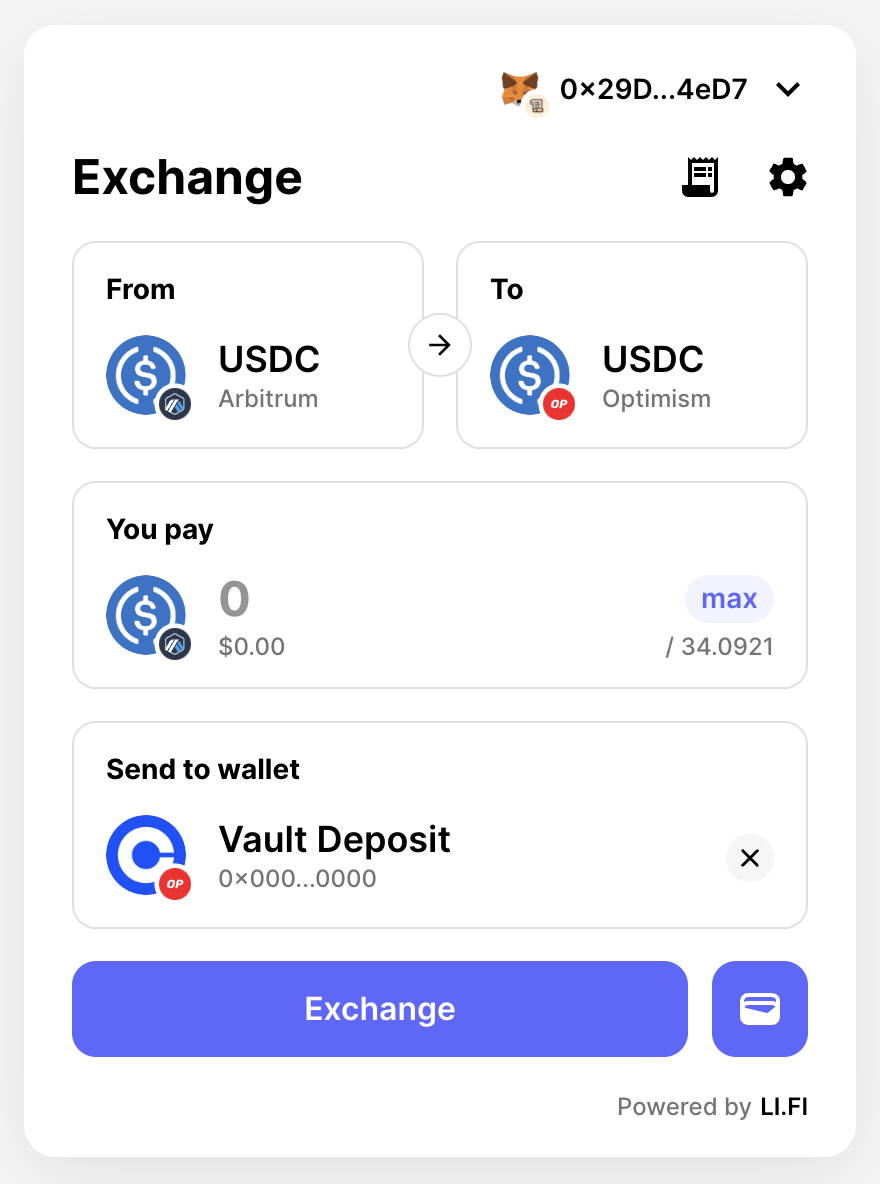
Developers can use the `toAddress` option to configure a single destination address. The `address` and `chainType` properties are required, while the `name` and `logoURI` properties are optional.
```typescript theme={"system"}
import { ChainType, LiFiWidget, WidgetConfig } from "@lifi/widget";
const widgetConfig: WidgetConfig = {
toAddress: {
name: "Vault Deposit",
address: "0x0000000000000000000000000000000000000000",
chainType: ChainType.EVM,
logoURI: "https://example.com/image.svg",
},
};
export const WidgetPage = () => {
return (
);
};
```
## Configure a curated list of wallet addresses
Developers can use `toAddresses` option to configure a curated list of wallet addresses.
```typescript theme={"system"}
import { ChainType, LiFiWidget, WidgetConfig } from "@lifi/widget";
const widgetConfig: WidgetConfig = {
toAddresses: [
{
name: "Lenny",
address: "0x552008c0f6870c2f77e5cC1d2eb9bdff03e30Ea9",
chainType: ChainType.EVM,
logoURI: "https://example.com/image.svg",
},
{
address: "0x4577a46A3eCf44E0ed44410B7793977ffbe22CE0",
chainType: ChainType.EVM,
},
{
name: "My sweet solami",
address: "6AUWsSCRFSCbrHKH9s84wfzJXtD6mNzAHs11x6pGEcmJ",
chainType: ChainType.SVM,
},
],
};
export const WidgetPage = () => {
return (
);
};
```
Using this configuration, when users click on the `Send to wallet` button, they will open a pre-configured list of addresses from which to choose, skipping the step where they can manually enter the address.
Together with configuring the wallet list, developers can make the destination address required to be filled out. Please see Required destination address for more details.
## Explorer URLs
In the widget there are numerous points where a user can click to open an explorer in a separate browser tab in order to find out more information about a transaction or an address. Any buttons or links in the widget that present this icon will direct the user to an explorer.
We have default behaviors in relation to opening explorers and we can also use widget config to override and change these behaviors.
### Default behavior for chains
Often when trying to direct a user to an explorer the widget will know which chain relates to a transaction or address and it will present an explorer that matches that chain.
For example, after the user has executed a transaction, on the transaction details page they can click on the "Token allowance approved" explorer button to see more detail about that approval. If the approval was done using the Optimism chain then a new tab would open taking the user to optimistic.etherscan.io to show them more information about that approval.
If no explorer can be found in relation to a chain then the user will be directed to LiFi's explorer.
### Default behavior for internal explorers
An internal explorer is an explorer that is the preferred choice of an organization that is building an app using the widget. In some parts of the widget we use an internal explorer rather than attempting to find an explorer for a specific chain.
For example, once the user has completed a transaction and is on the transaction details page they are presented with a transfer ID (see below). This is accompanied by a link which allows the user to open an explorer in order to find more information about that transaction. There is no attempt to find a chain specific explorer. The default explorer used is LI.FI own internal explorer and users will be directed to [https://scan.li.fi](https://scan.li.fi/)
### Overriding the explorer URLs
It's possible to override the explorer URLs that widget uses via the widget config. We can do this for specific chains and for the internal explorer. You can use your own explorer urls for multiple chains and at the same time state your own alternative for the internal explorer.
#### Overriding explorers for a chain
In the widget config you can override chains by adding an entry to the explorerUrls object: you provide the chain id as a key and the base url of the explorer as the value.
```typescript theme={"system"}
import type { WidgetConfig } from "@lifi/widget";
const widgetConfig: WidgetConfig = {
explorerUrls: {
42161: ["https://scan.li.fi"],
},
};
```
The explorer specified above will be used only for that chain, in the above example this would be Arbitrum. For other chains that aren't specified in the explorerUrls object the widget will still present the default behavior (as stated above).
#### Custom explorer paths
For explorers that don't follow the standard `/address/:address` and `/tx/:hash` convention, you can specify custom paths:
```typescript theme={"system"}
import type { WidgetConfig } from "@lifi/widget";
const widgetConfig: WidgetConfig = {
explorerUrls: {
42161: [
{
url: "https://custom-explorer.com",
txPath: "/transaction/", // Custom transaction path
addressPath: "/account/", // Custom address path
},
],
},
};
```
#### Overriding explorers for the internal explorer
In the widget config you can override the internal explorer by adding an entry to the explorerUrls object: you provide `internal` as a key and the base url of the explorer as the value.
```typescript theme={"system"}
import type { WidgetConfig } from "@lifi/widget";
const widgetConfig: WidgetConfig = {
explorerUrls: {
internal: ["https://jumper.exchange/scan"],
},
};
```
Any places within the widget that use the internal explorer will now use the url stated in the config rather than the default.
### Address and transaction pages
The widget assumes that the explorer will provide pages for addresses at `/address/:address` and for transactions at `/tx/:hash` and will attempt to navigate the user to those pages when the users clicks the related buttons.
A link to a wallet address would look like:
```
https://scan.li.fi/address/0xb9c0dE368BECE5e76B52545a8E377a4C118f597B
```
And a link to a transaction would look like:
```
https://scan.li.fi/tx/0x05dbd8d3be79ad466e7d2898f719cc47b1b3b545cf4782aece16e11849ddd24b
```
The widget assumes that any explorer used with the widget will follow this convention, unless custom paths are specified.
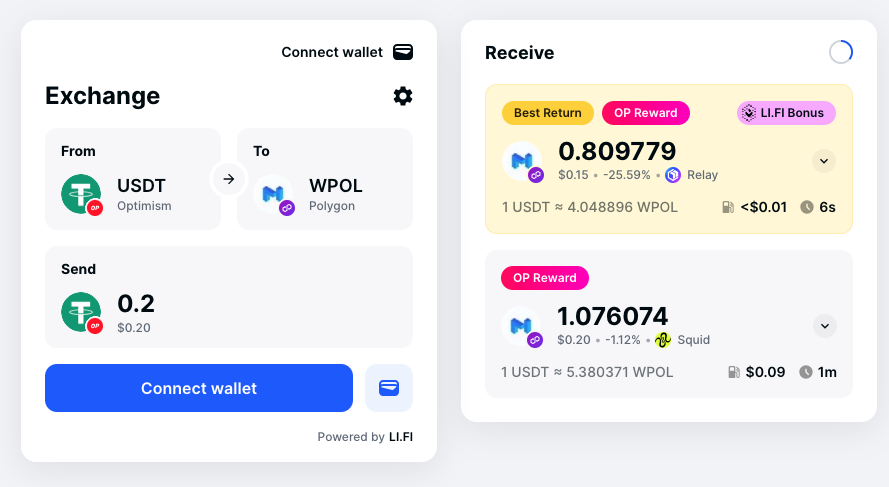
## Adding route labels
The Widget allows you to visually enhance specific routes by adding route labels — styled badges with customizable text and appearance.
To display route labels dynamically, configure the `routeLabels: RouteLabelRule[]` array in your `WidgetConfig`.
```typescript theme={"system"}
interface RouteLabelRule {
label: RouteLabel; // The label to display if conditions match
bridges?: AllowDeny; // Optional: Filter by bridge(s)
exchanges?: AllowDeny; // Optional: Filter by exchange(s)
fromChainId?: number[]; // Optional: Filter by source chain ID(s)
toChainId?: number[]; // Optional: Filter by destination chain ID(s)
fromTokenAddress?: string[]; // Optional: Filter by source token address(es)
toTokenAddress?: string[]; // Optional: Filter by destination token address(es)
match?: (route: Route) => boolean; // Optional: Custom predicate evaluated against the route
}
interface RouteLabel {
text: string; // Text to show on the label
sx?: SxProps; // Optional: Style object (MUI-style)
}
```
Each label rule defines matching conditions and a label configuration that will be applied if the conditions are met.
The label configuration includes `text` and `sx` styling of the badge in the MUI-style CSS-in-JS way.
The rest of the fields determine when and where a label should be applied based on route conditions.
You can combine multiple criteria such as `fromChainId`, `exchanges`, `tokens`, and more.
For bridges and exchanges, use the `allow` and `deny` fields for fine-grained control, similarly to how it is described in [Configure allow and deny options](#configure-allow-and-deny-options).
For matching logic that the built-in fields cannot express — gas costs, step count, route tags, or any other property on the `Route` object — provide a custom `match` predicate.
Its result is AND'd with the other criteria on the rule, so all specified conditions must pass for the label to apply.
A rule can also use `match` on its own without any other fields.
The `match` predicate is not supported in `@lifi/widget-light`, since functions cannot be transferred across the iframe boundary via `postMessage`.
Example configuration:
```typescript theme={"system"}
import { ChainId } from "@lifi/sdk";
import type { WidgetConfig } from "@lifi/widget";
const widgetConfig: WidgetConfig = {
routeLabels: [
{
label: {
text: "OP Reward",
sx: {
background: "linear-gradient(90deg, #ff0404, #ff04c8)",
"@keyframes gradient": {
"0%": { backgroundPosition: "0% 50%" },
"50%": { backgroundPosition: "100% 50%" },
"100%": { backgroundPosition: "0% 50%" },
},
animation: "gradient 3s ease infinite",
backgroundSize: "200% 200%",
color: "#ffffff",
},
},
fromChainId: [ChainId.OPT], // Applies to routes from Optimism
},
{
label: {
text: "LI.FI Bonus",
sx: {
display: "flex",
alignItems: "center",
position: "relative",
overflow: "hidden",
marginLeft: "auto",
order: 1,
backgroundImage:
"url(https://raw.githubusercontent.com/lifinance/types/main/src/assets/icons/exchanges/lifidexaggregator.svg)",
backgroundPosition: "left center",
backgroundRepeat: "no-repeat",
backgroundSize: "24px",
paddingLeft: "12px",
backgroundColor: "#f5b5ff",
},
},
fromChainId: [ChainId.OPT], // Applies to routes from Optimism
exchanges: {
allow: ["relay"], // Only show for Relay routes
},
},
{
label: { text: "Single Tx" },
// Highlight routes that complete in one transaction — no extra
// approvals or intermediate steps, so they're faster and less
// likely to fail mid-execution.
match: (route) => route.steps.length === 1,
},
],
};
```
Rendered example of the configured route labels:
Labels only appear when *all* specified criteria are satisfied by a route.
 ## Configure a curated list of wallet addresses
Developers can use `toAddresses` option to configure a curated list of wallet addresses.
```typescript theme={"system"}
import { ChainType, LiFiWidget, WidgetConfig } from "@lifi/widget";
const widgetConfig: WidgetConfig = {
toAddresses: [
{
name: "Lenny",
address: "0x552008c0f6870c2f77e5cC1d2eb9bdff03e30Ea9",
chainType: ChainType.EVM,
logoURI: "https://example.com/image.svg",
},
{
address: "0x4577a46A3eCf44E0ed44410B7793977ffbe22CE0",
chainType: ChainType.EVM,
},
{
name: "My sweet solami",
address: "6AUWsSCRFSCbrHKH9s84wfzJXtD6mNzAHs11x6pGEcmJ",
chainType: ChainType.SVM,
},
],
};
export const WidgetPage = () => {
return (
## Configure a curated list of wallet addresses
Developers can use `toAddresses` option to configure a curated list of wallet addresses.
```typescript theme={"system"}
import { ChainType, LiFiWidget, WidgetConfig } from "@lifi/widget";
const widgetConfig: WidgetConfig = {
toAddresses: [
{
name: "Lenny",
address: "0x552008c0f6870c2f77e5cC1d2eb9bdff03e30Ea9",
chainType: ChainType.EVM,
logoURI: "https://example.com/image.svg",
},
{
address: "0x4577a46A3eCf44E0ed44410B7793977ffbe22CE0",
chainType: ChainType.EVM,
},
{
name: "My sweet solami",
address: "6AUWsSCRFSCbrHKH9s84wfzJXtD6mNzAHs11x6pGEcmJ",
chainType: ChainType.SVM,
},
],
};
export const WidgetPage = () => {
return (
 Labels only appear when *all* specified criteria are satisfied by a route.